The Linux Terminal, From Zero
The terminal looks scary and is not. By the end you will move around Linux by typing, with confidence.
What Even Is a Terminal?
Talking to the computer with words
A terminal (also called a shell or command line) lets you control the computer by typing commands instead of clicking. Every serious security person lives in it, because it is fast and precise.
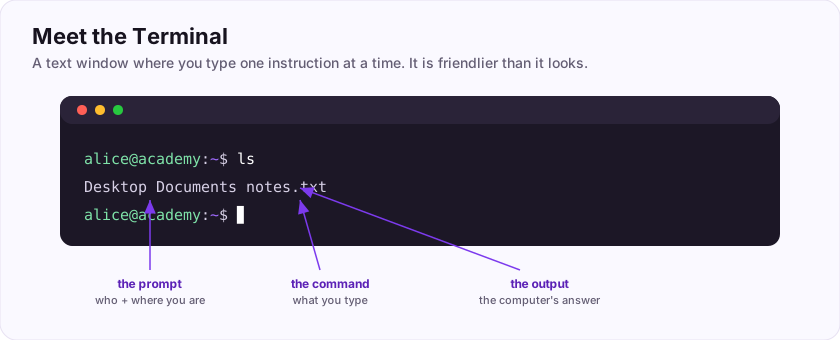
Before the cursor sits the prompt, which quietly tells you who you are, which computer you are on, and which folder you are in. The $ means the shell is ready.
$. Then press Enter to run it. The prompt itself is not something you type.In the prompt, which single symbol shows the shell is ready for your command?
+10 ptsNeed a hint?
It sits just before the cursor.Your First Commands (Try Each One)
Type these yourself
Open a terminal and try each command. The line starting with $ is what you type; the lines under it are an example of what you might see back.
pwd — "where am I?"
Prints the folder you are currently in.
$ pwd
/home/kali
ls — "what is in here?"
Lists the files and folders around you.
$ ls
Desktop  Downloads  notes.txt
cd — "go into a folder"
Changes directory. Use cd .. to go back up one level.
$ cd Downloads
$ pwd
/home/kali/Downloads
cat — "show me this file"
Prints the contents of a text file.
$ cat notes.txt
remember to enumerate everything
whoami and mkdir
whoami prints your username; mkdir makes a new folder.
$ whoami
kali
$ mkdir practice--help after almost any command (like ls --help) to see what it can do.You just controlled a computer with words. Reward: ASEC{terminal_tamed}
Which command lists the files and folders in your current location?
+10 ptsNeed a hint?
Two letters, short for "list".What is the flag at the end of this task?
+10 ptsNeed a hint?
It is in bold at the end.Reading the Prompt
The prompt is talking to you
That little bit of text before your cursor is not decoration — it is a status line. A typical prompt looks like kali@kali:~$.
Read it left to right: kali is your username, @kali is the hostname (the computer's name), ~ is the current folder (here, your home), and the final symbol shows the shell is ready.
That final symbol also reveals *who you are*: a plain user sees $, but the all-powerful root administrator sees #. So if you ever see a # prompt, you are root — tread carefully.
$ = ordinary user, # = root (admin). Glance at the prompt before running anything powerful.Flag: ASEC{prompt_tells_all}
Which prompt symbol tells you that you are the root (admin) user?
+10 ptsNeed a hint?
Not the dollar sign — the other one.What is the flag for this task?
+10 ptsNeed a hint?
It is in bold at the end.pwd: Where Am I?
Never get lost
Unlike a graphical file manager, the terminal does not constantly show your location — so the first command you reach for when confused is pwd (print working directory).
$ pwd
/home/kali/DownloadsIt answers "where am I right now?" with your full, absolute location. When a command behaves oddly ("file not found"), the usual cause is that you are not where you thought — pwd settles it instantly.
pwd. It prints exactly which folder your terminal is sitting in.Flag: ASEC{know_where_you_are}
Which command prints the folder you are currently in? (three letters)
+10 ptsNeed a hint?
Print Working Directory.What is the flag for this task?
+10 ptsNeed a hint?
It is in bold at the end.ls and Its Options
Seeing more than just names
ls lists what is around you, but its real power comes from options (also called flags) that change what it shows.
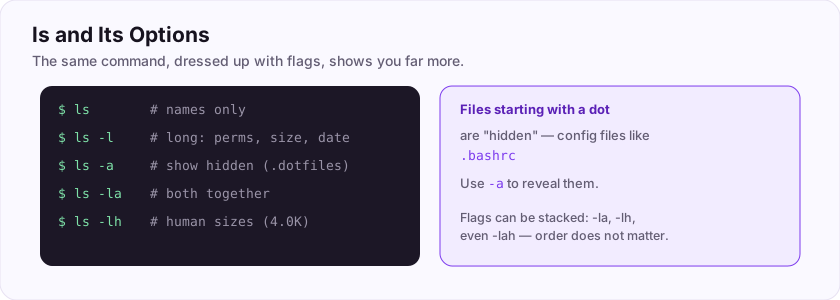
The essential ones:
$ ls        # just the names
$ ls -l     # long view: permissions, size, date
$ ls -a     # include hidden files (those starting with a dot)
$ ls -lh    # long view with human-readable sizes
Files whose names start with a dot (like .bashrc) are hidden by default. To reveal them you add -a. Flags can be stacked, so ls -la shows the long view *and* hidden files at once.
-a to ls to reveal hidden dotfiles; add -l for details. Combine them: ls -la.Flag: ASEC{list_it_all}
Which ls flag reveals hidden files (those starting with a dot)? (include the dash)
+10 ptsNeed a hint?
a for "all".What is the flag for this task?
+10 ptsNeed a hint?
It is in bold at the end.cd: Moving Around
Walking the folders
cd (change directory) is how you move. You give it where to go, and your terminal walks there.
The moves you will use constantly:
$ cd Downloads   # go into the Downloads folder
$ cd ..          # go UP one level to the parent
$ cd ~           # jump straight to your home folder
$ cd -           # go back to the folder you were just in
cd .. is the one to remember: two dots mean "the folder above this one," so it takes you up a level. Chain them (cd ../..) to go up two.
cd .. goes up one level; cd ~ jumps home; cd alone also goes home.Flag: ASEC{navigate_freely}
Does "cd .." move you up a level or down a level? (one word)
+10 ptsNeed a hint?
Two dots mean the parent folder.What is the flag for this task?
+10 ptsNeed a hint?
It is in bold at the end.Absolute vs Relative Paths
Two ways to name a location
A path is the address of a file or folder, and there are two kinds.
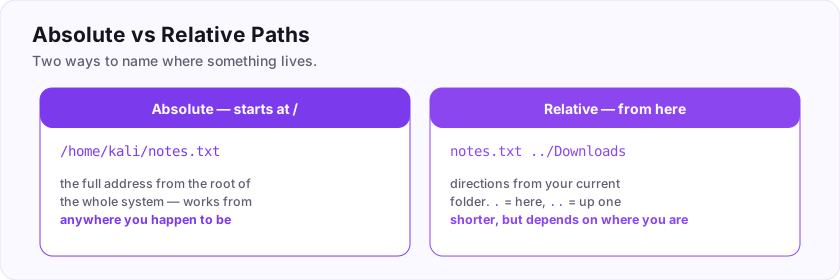
An absolute path starts from the very top of the filesystem with a /, so it works no matter where you currently are:
/home/kali/notes.txtA relative path is directions *from where you are right now* — no leading slash:
notes.txt        # a file here
../Downloads     # up one, then into Downloads
A path beginning with / is absolute; anything else is relative. Absolute is unambiguous; relative is shorter but depends on your current folder.
/ = absolute (full address). No slash = relative (from here). . means here, .. means up one.Flag: ASEC{paths_explained}
A path that starts with a / is called an ___ path? (one word)
+10 ptsNeed a hint?
It gives the full address from the top.What is the flag for this task?
+10 ptsNeed a hint?
It is in bold at the end.The Filesystem Tree
One big upside-down tree
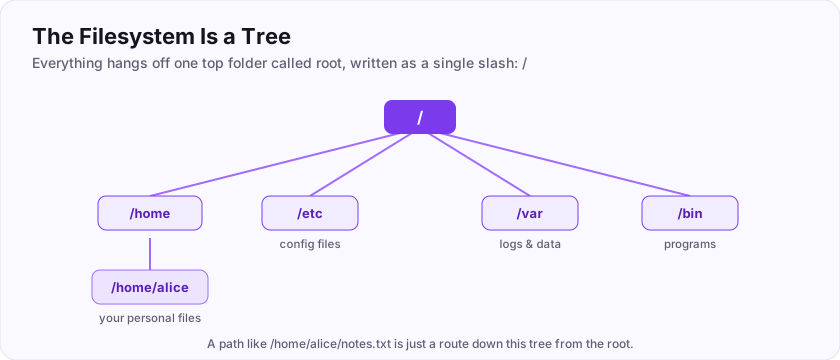
In Linux, everything lives in a single tree that starts at the root, written as a lone /. There are no separate "C: drive" and "D: drive" like Windows — just one tree.
Branches you will meet often:
/home— where users' personal folders live (/home/kali)./etc— system configuration files./binand/usr/bin— the actual command programs./var— logs and changing data./tmp— temporary scratch space./root— the root user's home (not the same as/).
The very top of the whole tree is a single character: /. Everything else hangs beneath it.
/. Config lives in /etc, users in /home, programs in /bin.Flag: ASEC{root_of_it_all}
What single character represents the very top (root) of the Linux filesystem?
+10 ptsNeed a hint?
A forward slash.What is the flag for this task?
+10 ptsNeed a hint?
It is in bold at the end.Home, Root, and the ~ Shortcut
Your own corner of the tree
Every user gets a personal folder called their home directory. For a user named kali, it is /home/kali, and it is where your files, downloads, and settings live.
Because you use it so much, the shell gives it a one-character shortcut: the tilde, ~. So cd ~ and ~/notes.txt always refer to your home, wherever you are.
Do not confuse two "roots": / is the top of the *whole system*, while /root is simply the *home directory of the root user*. Ordinary users live under /home; root lives in /root.
~ is a shortcut for your home directory. / is the system root; /root is just root's home — different things.Flag: ASEC{theres_no_place_like_home}
The ~ symbol is a shortcut for your ___ directory? (one word)
+10 ptsNeed a hint?
Where your personal files live.What is the flag for this task?
+10 ptsNeed a hint?
It is in bold at the end.Making Folders: mkdir
Building structure
To create a new folder, use mkdir (make directory).
$ mkdir projects
$ mkdir -p projects/2025/notes   # -p makes the whole chain at once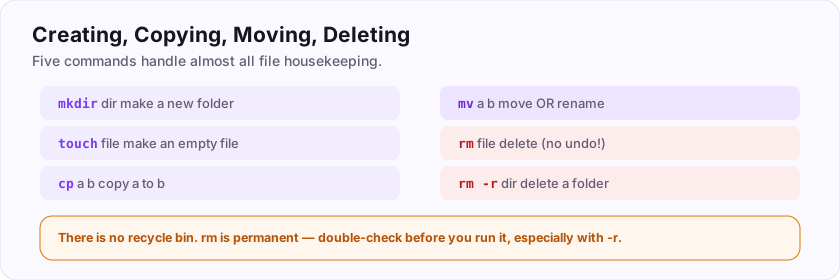
Plain mkdir makes one folder. The -p option ("parents") creates every folder in a path in one go, without complaining if some already exist — handy for building a deep structure quickly.
mkdir makes a folder; add -p to create nested folders in a single command.Flag: ASEC{build_a_folder}
Which command creates a new folder (directory)?
+10 ptsNeed a hint?
Make DIRectory.What is the flag for this task?
+10 ptsNeed a hint?
It is in bold at the end.Creating Files: touch
An empty file in an instant
touch creates a new, empty file (and, if the file already exists, just updates its timestamp).
$ touch report.txt
$ ls
report.txtIt is the quickest way to make a placeholder file you will fill in later, or several at once (touch a.txt b.txt c.txt). You will use it constantly when scripting or setting up practice files.
touch file makes an empty file (or refreshes its timestamp). Great for quickly creating placeholders.Flag: ASEC{make_a_file}
Which command creates a new empty file?
+10 ptsNeed a hint?
You "touch" it into existence.What is the flag for this task?
+10 ptsNeed a hint?
It is in bold at the end.Reading Files: cat
Dump a file to the screen
cat prints the entire contents of a file straight to your terminal.
$ cat notes.txt
enumerate everything
then enumerate again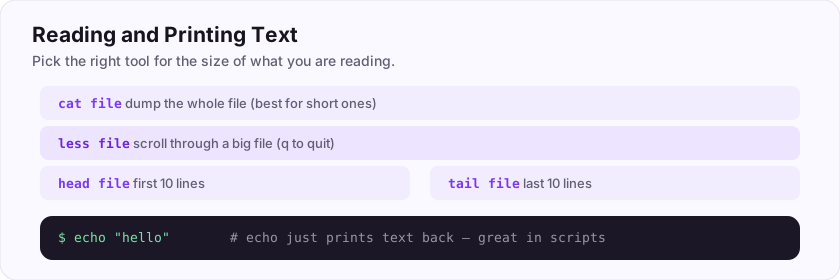
The name is short for "concatenate," because it can also join files together, but you will mostly use it to quickly peek at short files. For big files it dumps everything at once (too fast to read) — the next task shows better tools for those.
cat file prints a whole file. Perfect for short files; use less for long ones.Flag: ASEC{show_me_the_file}
Which command prints the whole contents of a text file to the screen?
+10 ptsNeed a hint?
Three letters, short for concatenate.What is the flag for this task?
+10 ptsNeed a hint?
It is in bold at the end.Big Files: less, head, and tail
The right tool for long files
cat floods the screen on a big file. For those, use these instead:
$ less bigfile.log   # scroll up/down, / to search, q to quit
$ head bigfile.log   # just the FIRST 10 lines
$ tail bigfile.log   # just the LAST 10 lines
$ tail -f app.log    # follow a log LIVE as it grows
head shows the top, and tail shows the bottom — invaluable for logs, where the newest entries are at the end. tail -f keeps watching a file in real time, which analysts use to watch logs as attacks happen.
less scrolls big files; head shows the top; tail shows the end (and tail -f follows a live log).Flag: ASEC{page_through_it}
Which command shows the LAST lines of a file (great for logs)?
+10 ptsNeed a hint?
The opposite end from head.What is the flag for this task?
+10 ptsNeed a hint?
It is in bold at the end.Copying: cp
Duplicate a file or folder
cp (copy) makes a duplicate, leaving the original in place.
$ cp notes.txt notes-backup.txt   # copy a file
$ cp -r projects projects-copy # -r copies a whole folderThe pattern is always cp source destination. To copy an entire folder and everything inside it, add -r (recursive). Making a quick backup copy before you edit something risky is a great habit.
cp source dest copies a file; add -r to copy a whole folder.Flag: ASEC{copy_that}
Which two-letter command copies a file?
+10 ptsNeed a hint?
CoPy.What is the flag for this task?
+10 ptsNeed a hint?
It is in bold at the end.Moving and Renaming: mv
One command, two jobs
mv (move) relocates a file to another folder — and, cleverly, is also how you *rename* things.
$ mv report.txt archive/       # move it into archive/
$ mv report.txt summary.txt # rename it (move to a new name here)There is no separate "rename" command in Linux: renaming is just moving a file to a new name in the same folder. Unlike cp, mv does not leave the original behind — it relocates it.
mv both moves and renames. mv old new in the same folder simply renames.Flag: ASEC{move_it}
Which command both moves AND renames a file?
+10 ptsNeed a hint?
MoVe.What is the flag for this task?
+10 ptsNeed a hint?
It is in bold at the end.Deleting: rm (Handle With Care)
Powerful and permanent
rm (remove) deletes files. There is no recycle bin — once it is gone, it is gone.
$ rm oldfile.txt      # delete a file
$ rm -r oldfolder # delete a folder and everything in itBecause it is instant and permanent, rm is the command people most regret typing carelessly. Adding -r deletes whole folders, and combining it with wildcards (rm *) can wipe out far more than you meant.
rm has no undo and no trash. Never run rm -rf / or a careless rm -r *. Read the whole command before pressing Enter.rm file deletes a file; rm -r folder deletes a folder. Slow down and double-check every time.Flag: ASEC{careful_with_rm}
Which two-letter command deletes (removes) a file?
+10 ptsNeed a hint?
ReMove.What is the flag for this task?
+10 ptsNeed a hint?
It is in bold at the end.Wildcards: * and ?
Match many files at once
Typing every filename is tedious. Wildcards let you describe a pattern and let the shell fill in the matches.
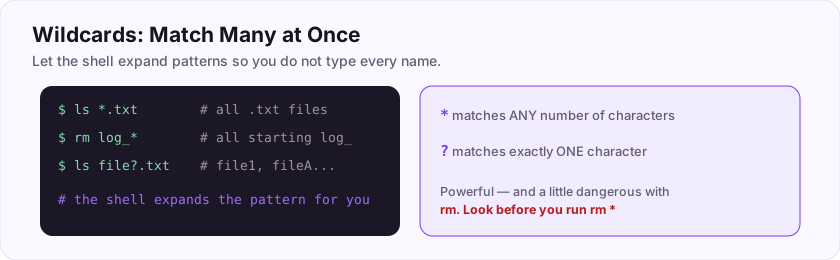
$ ls *.txt        # every file ending in .txt
$ rm log_*        # every file starting with log_
$ ls report?.txt  # report1.txt, reportA.txt (one char)
The star * matches *any number* of characters (including none), while ? matches exactly one. The shell expands the pattern into the real filenames before the command even runs.
rm. Run ls * first to see exactly what a pattern will match before deleting.* matches any number of characters; ? matches exactly one. Preview with ls before using them with rm.Flag: ASEC{wildcards_rule}
Which wildcard character matches ANY number of characters?
+10 ptsNeed a hint?
The star / asterisk.What is the flag for this task?
+10 ptsNeed a hint?
It is in bold at the end.Tab Completion and History
Type less, move faster
Two features separate slow beginners from fast, confident users — and they cost nothing to learn.
- Tab completion: start typing a file or command name and press Tab. The shell finishes it for you (press Tab twice to see all matches). It saves typing *and* prevents typos.
- Command history: press the up arrow to bring back previous commands, edit, and re-run them. The
historycommand lists them all, and!!re-runs the very last one.
The single most useful key is Tab. Get in the habit of tapping it constantly instead of typing full names.
Flag: ASEC{type_less}
Which key auto-completes a file or command name you have started typing?
+10 ptsNeed a hint?
Left of the Q key.What is the flag for this task?
+10 ptsNeed a hint?
It is in bold at the end.Getting Help: man and --help
You never have to memorise everything
Nobody remembers every option of every command. Instead, they look it up in seconds.
$ man ls        # the full manual for ls (q to quit)
$ ls --help     # a shorter summary of options
man (manual) opens detailed documentation for almost any command, right in your terminal. For a quicker reminder, most commands accept --help. Knowing *how to look things up* matters far more than memorising flags.
man command opens the full manual; command --help gives a quick summary. Look things up freely — everyone does.Flag: ASEC{read_the_manual}
Which command opens the built-in manual page for another command?
+10 ptsNeed a hint?
Short for manual.What is the flag for this task?
+10 ptsNeed a hint?
It is in bold at the end.echo and Printing Text
Make the shell say something
echo simply prints whatever text you give it back to the screen.
$ echo "hello world"
hello world
$ echo "Backing up now..."That sounds trivial, but it is the workhorse of shell scripts — printing messages, showing progress, and (as you will see) writing text into files with redirection. It also prints the value of variables, like echo $HOME.
echo prints text back to you. It is essential for messages inside scripts and for viewing variables.Flag: ASEC{echo_echo}
Which command prints text back to the screen?
+10 ptsNeed a hint?
It repeats what you say.What is the flag for this task?
+10 ptsNeed a hint?
It is in bold at the end.Finding Files: find
Where did that file go?
When you know a file exists somewhere but not where, find searches the directory tree for it by name (or size, date, type, and more).
$ find . -name "notes.txt"      # search here and below
$ find / -name "*.conf" 2>/dev/null   # config files everywhere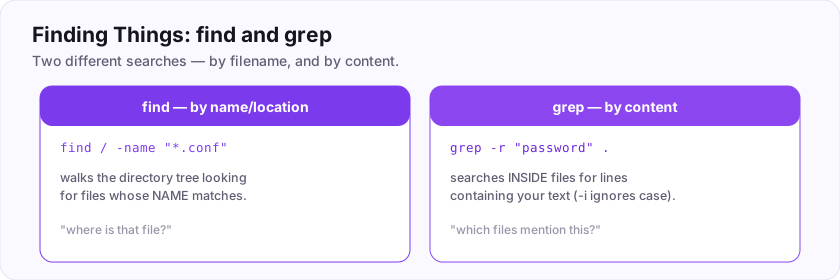
You give find a starting point (. for here, / for everywhere) and a test like -name. It walks every folder beneath and reports matches. In security work it is perfect for hunting interesting files across a system.
find <where> -name "<pattern>" locates files by name across whole directory trees.Flag: ASEC{find_anything}
Which command searches for files by name across directories?
+10 ptsNeed a hint?
It does what it says.What is the flag for this task?
+10 ptsNeed a hint?
It is in bold at the end.Searching Inside Files: grep
Find the needle in the text
Where find looks for file *names*, grep searches *inside* files for lines containing your text.
$ grep "error" app.log          # lines mentioning error
$ grep -i "password" config.txt  # -i ignores case
$ grep -r "TODO" . # -r searches every file below heregrep is one of the most-used tools in all of Linux. Add -i to ignore case and -r to search recursively through folders. Security folks use it constantly to hunt for keywords like "password" or an IP address across files.
grep "text" file finds lines containing text. -i ignores case, -r searches folders recursively.Flag: ASEC{grep_is_gold}
Which command searches for text INSIDE files?
+10 ptsNeed a hint?
Four letters, a Linux legend.What is the flag for this task?
+10 ptsNeed a hint?
It is in bold at the end.Pipes: Connecting Commands
Build power by joining tools
The Unix philosophy is small tools that do one thing well — and the pipe, written |, is the glue that connects them. It sends the *output* of one command straight into the *input* of the next.
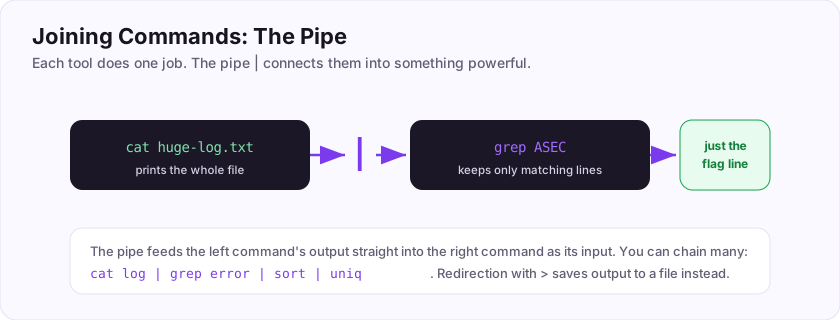
$ ls | grep ".txt"          # list files, keep only .txt ones
$ cat access.log | grep 404 | wc -l   # count 404s in a log
Read left to right: ls produces a list, the | hands it to grep, which filters it. You can chain as many as you like, each stage refining the last. This is where the terminal becomes genuinely powerful.
| feeds one command's output into the next. Chain small tools to do big things.Flag: ASEC{pipe_it_up}
Which single symbol sends one command output into another command?
+10 ptsNeed a hint?
The vertical bar, above the backslash.What is the flag for this task?
+10 ptsNeed a hint?
It is in bold at the end.Redirection: > and >>
Send output into files
Instead of printing to the screen, you can redirect a command's output into a file.
$ echo "line one" > notes.txt    # write (OVERWRITES the file)
$ echo "line two" >> notes.txt   # append (adds to the end)
$ sort names.txt > sorted.txt    # save sorted output
A single > overwrites the file with the new output (wiping what was there). A double >> *appends*, adding to the end without destroying the existing contents. That one extra character is the difference between keeping and losing your data.
> overwrites the target file completely. When you mean to add, use >>.> writes (overwrites); >> appends. < feeds a file into a command as input.Flag: ASEC{redirect_the_flow}
Which operator APPENDS output to a file without overwriting it? (two characters)
+10 ptsNeed a hint?
Two greater-than signs.What is the flag for this task?
+10 ptsNeed a hint?
It is in bold at the end.Combining Tools: pipe + grep
The everyday one-liner
Now put pipes and grep together — a combination you will type thousands of times.
$ ls -la | grep ".conf"        # only config files in this folder
$ ps aux | grep firefox        # is firefox running?
$ history | grep ssh           # every ssh command I have run
The pattern is always the same: a command that *produces a lot*, then a | into grep that *keeps only what matters*. "Generate, then filter" is the reflex that makes the command line feel effortless.
<command> | grep <text> runs a command and filters its output. The pipe | is the connector.Flag: ASEC{combine_your_tools}
In "ls | grep txt", which symbol connects the two commands?
+10 ptsNeed a hint?
The pipe again.What is the flag for this task?
+10 ptsNeed a hint?
It is in bold at the end.Permissions: rwx
Who can do what
Every file has permissions controlling who may use it. Run ls -l and the first column shows them, like -rwxr-xr--.
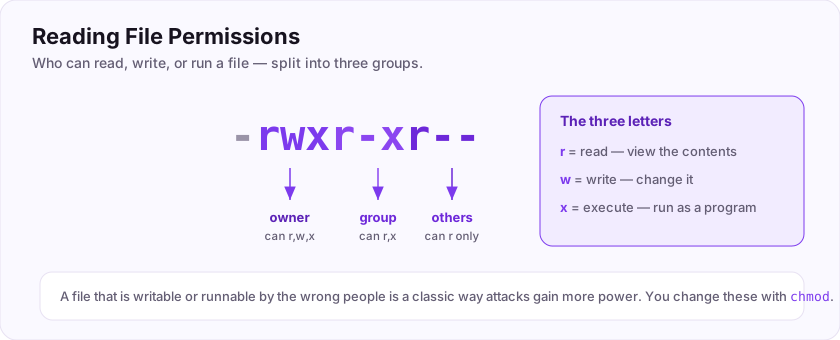
The three letters that matter are r (read), w (write), and x (execute), and they are set separately for three groups: the owner, the group, and others (everyone else). So rwxr-xr-- means the owner can read/write/execute, the group can read/execute, and others can only read.
The third permission, execute (x), is what lets a file be *run* as a program — remember that one, it comes up next.
x means a file can be run.Flag: ASEC{who_can_do_what}
The three permission letters are read, write, and e___? (one word)
+10 ptsNeed a hint?
The x lets a file run.What is the flag for this task?
+10 ptsNeed a hint?
It is in bold at the end.chmod: Changing Permissions
Grant or remove access
chmod (change mode) sets a file's permissions.
$ chmod +x script.sh      # make it executable
$ chmod -w notes.txt      # remove write permission
$ chmod 755 script.sh # numeric style: rwx r-x r-xThe simplest form adds or removes a permission with + or - (like +x to allow running). The numeric form (755, 644) sets all three groups at once — each digit is a sum where read=4, write=2, execute=1. You will use chmod +x constantly to make your scripts runnable.
chmod +x file makes a file executable; the numeric form (e.g. chmod 644) sets all permissions at once.Flag: ASEC{grant_permission}
Which command changes a file permissions (its mode)?
+10 ptsNeed a hint?
CHange MODe.What is the flag for this task?
+10 ptsNeed a hint?
It is in bold at the end.Ownership: chown
Change who owns a file
Alongside permissions, every file has an owner and a group. chown (change owner) sets them.
$ sudo chown kali report.txt          # owner becomes kali
$ sudo chown kali:kali report.txt # owner and groupChanging ownership usually needs sudo (admin rights), because you are altering who controls a file. Together, chmod (what can be done) and chown (who owns it) are the two levers of Linux file security.
chown user file changes a file's owner (usually needs sudo). Pairs with chmod for full control.Flag: ASEC{take_ownership}
Which command changes who owns a file?
+10 ptsNeed a hint?
CHange OWNer.What is the flag for this task?
+10 ptsNeed a hint?
It is in bold at the end.Running a Script: ./ and +x
Making your own commands run
When you write a script, running it takes two steps. First make it executable, then run it by pointing at it with ./.
$ chmod +x hello.sh    # 1) allow it to run (execute permission)
$ ./hello.sh # 2) run it from the current folderWhy the ./? For safety, Linux does not run programs from your current folder just by name — you must explicitly say "the one right here" with ./ followed by the script's name. Forgetting the chmod +x first is the classic "permission denied" beginner error.
chmod +x file then ./file. The ./ means "in this folder".Flag: ASEC{run_your_script}
To run a script in the current folder, you type ./ then its ___? (one word)
+10 ptsNeed a hint?
e.g. ./hello.sh — the filename.What is the flag for this task?
+10 ptsNeed a hint?
It is in bold at the end.Being Root: sudo
Borrowing admin powers
Some actions (installing software, editing system files) need administrator rights. sudo runs a single command as the all-powerful root user.
$ sudo apt update
[sudo] password for kali: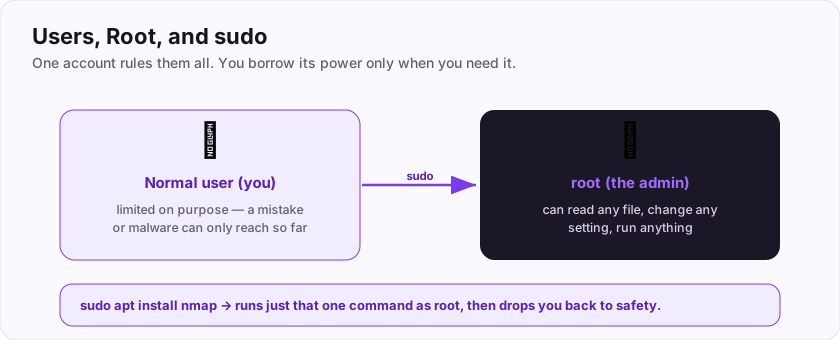
Prefix a command with sudo and, after your password, it runs with full privileges — just for that one command. This is far safer than logging in as root all the time, because you only take the power when you truly need it.
sudo gives root power. A wrong command with sudo can damage the whole system. Pause before running one.sudo command runs that one command as root (admin). Use it only when a task genuinely needs it.Flag: ASEC{with_great_power}
Which command runs a single command with root (admin) powers?
+10 ptsNeed a hint?
Super-User DO.What is the flag for this task?
+10 ptsNeed a hint?
It is in bold at the end.Users and whoami
Knowing who you are
On a multi-user system it matters *which* account you are acting as. whoami answers instantly.
$ whoami
kali
$ id
uid=1000(kali) gid=1000(kali) groups=1000(kali),27(sudo)whoami prints your current username; id shows your user and the groups you belong to (being in the sudo group is what lets you use sudo). In security work, "who am I on this box?" is one of the first questions you ask after gaining access.
whoami prints your username; id shows your groups. Always know which account you are.Flag: ASEC{know_thyself}
Which command prints your current username?
+10 ptsNeed a hint?
It literally asks the question.What is the flag for this task?
+10 ptsNeed a hint?
It is in bold at the end.Processes: ps and top
See what is running
Every running program is a process with a unique number, its PID (process ID). Two commands let you see them.
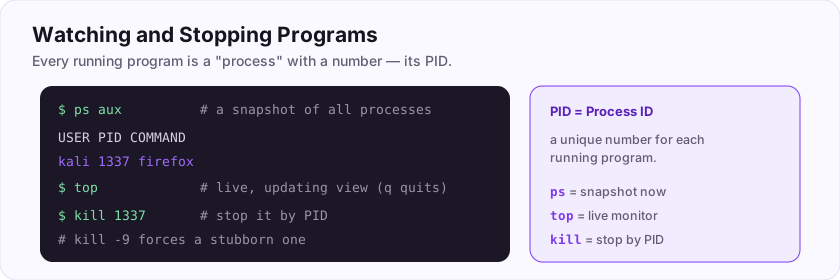
$ ps aux          # a one-time snapshot of all processes
$ top             # a live, constantly updating view (q to quit)
ps aux prints a full list right now, which you often pipe into grep (ps aux | grep firefox). top (or the friendlier htop) is a live dashboard showing what is using your CPU and memory in real time.
ps aux is a snapshot of processes; top is a live, updating monitor. Each program has a PID.Flag: ASEC{see_whats_running}
Which command gives a live, continuously updating view of running processes?
+10 ptsNeed a hint?
Three letters; shows the "top" resource users.What is the flag for this task?
+10 ptsNeed a hint?
It is in bold at the end.Stopping Processes: kill
Shut something down
When a program hangs or you need to stop it, kill ends a process by its PID.
$ ps aux | grep frozenapp     # find its PID, say 4242
$ kill 4242                    # ask it to stop politely
$ kill -9 4242 # force it to stop (last resort)Plain kill sends a polite "please close" signal. If a process ignores it, kill -9 forces it to stop immediately. The workflow is always: find the PID (with ps or top), then kill it.
kill <PID> stops a process; kill -9 <PID> forces a stubborn one. Find the PID first with ps or top.Flag: ASEC{stop_the_process}
Which command stops a running process by its PID?
+10 ptsNeed a hint?
It sounds exactly like what it does.What is the flag for this task?
+10 ptsNeed a hint?
It is in bold at the end.Downloading: wget and curl
Grab things from the web
Two commands fetch files and talk to web servers straight from the terminal.
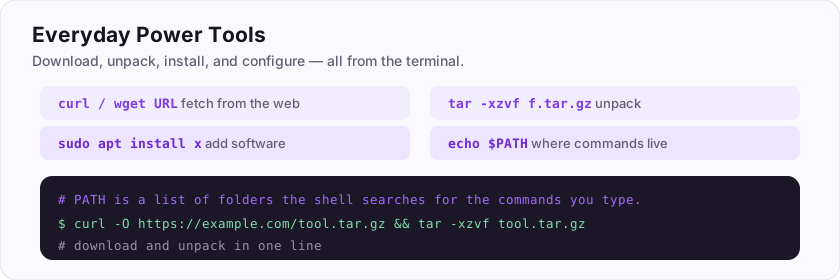
$ wget https://example.com/tool.sh      # download a file
$ curl https://api.example.com/status   # print a URL's response
$ curl -O https://example.com/tool.sh   # download, keep the name
wget is the simple downloader. curl also downloads, but is the Swiss-army knife for *talking to web services and APIs* — sending requests, headers, and data — which makes it a favourite in web security work.
wget URL downloads a file; curl downloads *and* is superb for poking at web APIs.Flag: ASEC{grab_from_the_web}
Which command downloads from a URL and is also great for talking to web APIs?
+10 ptsNeed a hint?
Four letters, beloved in web hacking.What is the flag for this task?
+10 ptsNeed a hint?
It is in bold at the end.Archives: tar and zip
Bundle and unbundle files
Downloads and backups usually arrive as a single compressed archive. You unpack them from the terminal.
$ tar -xzvf tool.tar.gz     # extract a .tar.gz
$ tar -czvf backup.tar.gz mydir/   # create one
$ unzip files.zip           # extract a .zip
tar handles the .tar.gz (and .tgz) archives common in Linux. The flags read as: x=extract, c=create, z=gzip, v=verbose, f=file. For .zip files you use unzip. Extracting a .tar.gz almost always means tar -xzvf.
tar -xzvf file.tar.gz extracts a tar.gz archive; unzip file.zip handles zips.Flag: ASEC{unpack_it}
Which tool extracts a .tar.gz archive?
+10 ptsNeed a hint?
It is right there in the file extension.What is the flag for this task?
+10 ptsNeed a hint?
It is in bold at the end.Package Management: apt
Install software the easy way
You rarely download programs manually on Linux. Instead a package manager installs, updates, and removes software for you. On Kali and other Debian-based systems it is apt.
$ sudo apt update              # refresh the list of available software
$ sudo apt install nmap        # install a tool
$ sudo apt remove nmap # remove itRun apt update first (to refresh what is available), then apt install <tool> grabs the program and everything it needs, automatically. It needs sudo because installing software is a system-wide change.
sudo apt install <tool> installs software; run apt update first to refresh the list.Flag: ASEC{install_tools}
On Debian/Kali, which command installs software packages? (one word)
+10 ptsNeed a hint?
Three letters.What is the flag for this task?
+10 ptsNeed a hint?
It is in bold at the end.Environment Variables and PATH
The shell's memory
The shell keeps named values called environment variables. You read one by putting a $ in front of its name.
$ echo $HOME       # /home/kali
$ echo $USER       # kali
$ echo $PATH # a list of folders, separated by colonsThe most important is PATH — the list of folders the shell searches when you type a command. When you type ls, the shell looks through each folder in PATH to find the ls program. If a command is "not found," it usually just is not in your PATH. You set variables with export NAME=value.
$NAME. PATH lists where the shell looks for commands — a "command not found" often means it is not in your PATH.Flag: ASEC{mind_your_path}
Which environment variable lists the folders where the shell looks for commands?
+10 ptsNeed a hint?
Four letters, all caps.What is the flag for this task?
+10 ptsNeed a hint?
It is in bold at the end.Chaining Commands: ; && ||
Run several commands in a row
You can put multiple commands on one line, and control how they depend on each other.
$ cd project ; ls              # run both, no matter what
$ mkdir build && cd build      # cd ONLY if mkdir succeeded
$ ping -c1 host || echo "down" # echo ONLY if ping failed
A semicolon ; just runs commands one after another. Double ampersand && runs the next command *only if the previous one succeeded* — perfect for "make the folder, and if that worked, go into it." Double pipe || runs the next only if the previous *failed*.
; runs commands in sequence; && runs the next only on success; || runs the next only on failure.Flag: ASEC{chain_commands}
Which operator runs the next command ONLY if the first one succeeds? (two characters)
+10 ptsNeed a hint?
Two ampersands.What is the flag for this task?
+10 ptsNeed a hint?
It is in bold at the end.Handy Keyboard Shortcuts
Small keys, big speed
A handful of key combinations make the terminal feel effortless.
- Ctrl+C — cancel/stop the command that is currently running.
- Ctrl+L — clear the screen (same as the
clearcommand). - Ctrl+R — search backwards through your command history as you type.
- Ctrl+D — signal "end of input" / log out of the shell.
- Ctrl+A / Ctrl+E — jump to the start / end of the line.
The one to memorise first is Ctrl+C: when something runs away or hangs, it stops it. These shortcuts turn slow typing into fast, fluent work.
Flag: ASEC{shortcut_master}
Which key combination cancels or stops the command currently running? (e.g. Ctrl+X)
+10 ptsNeed a hint?
Control plus the letter C.What is the flag for this task?
+10 ptsNeed a hint?
It is in bold at the end.Putting It All Together
You now speak Linux
Look at everything you can do. You can navigate (pwd, ls, cd), manage files (mkdir, touch, cp, mv, rm), read them (cat, less, head, tail), search (find, grep), connect tools (|, >, >>, &&), control access (chmod, chown, sudo), watch the system (ps, top, kill), and pull things from the web (curl, wget, apt).
Here is a single line that uses several at once — read it left to right:
$ ls -la /var/log | grep ".log" | head -5"List everything in /var/log the long way, keep only the .log names, and show the first five." That fluency — combining small commands into exactly what you need — is the heart of working in Linux, and you have it now.
Where did it all begin? With the humble ls, listing what is around you. Everything else built from there.
Your graduation flag for this room: ASEC{you_speak_linux}
Which command — the very first you learned — lists the files around you?
+10 ptsNeed a hint?
Two letters, short for "list".What is your graduation flag for this room?
+15 ptsNeed a hint?
It is in bold at the very end.Reviews
No written reviews yet. Be the first once you have played the room.